We’ll composite fully CG shots from the ground up, step by step, so you can apply the same process yourself on any shot.
Watch every step of the process as I develop the shot from scratch, solving problems on the fly and explaining the decisions behind each move. You’ll finish with a clear, adaptable workflow you can apply to any production.
Get ready to embark on a complete, hands-on learning experience — designed for Nuke artists who are ready to step up to the professional level of the film industry.
Throughout the course, you’ll develop a fully CGI sequence from the very first render to the final delivery, applying advanced techniques in compositing, look development, and technical workflow control.
You’ll learn to think like a professional compositor — to analyse, diagnose, and solve each shot with both artistic intent and technical precision.
Included in the course
- 14 Modules and additional content.
- 6+ hours of content.
- 100+ video lessons.
- Unlimited access to the course.
- Free scripts, renders, and plates.
- Free scripts, renders, and plates.
- Doubt resolution via email.
Who is it for?
- Digital composition artists.
- VFX artists working with Nuke.
Requirements
- Nuke 13 or superior
- 16 Gb of memory RAM
What can you expect from this journey?
Building a complete cinematic sequence
You’ll work on five shots that form part of the same sequence, following a workflow identical to that of a real studio — from asset preparation and colour management to final client delivery.
Creating and developing complex environments
You’ll learn how to build jungles and terrains from raw renders, applying lighting corrections, atmospheric depth, fog, and 3D projections to achieve realistic integration.
Advanced look development directly in Nuke
Discover how to perform look development entirely inside Nuke — adjusting shading, relighting, and micro details without relying on re-renders. You’ll master the use of AOVs, normals, and position passes to refine the final look of each shot.
Simulating and integrating physical effects
You’ll create and integrate rain, particles, water, fog, and blood — using both practical elements and Nuke’s native particle systems — to reach a cinematic level of realism in your compositions.
Technical workflow and sequence management
You’ll design a professional folder structure, learn how to work in ACEScg, and maintain visual consistency across shots. You’ll also use tools like Stamps, Merge All, and custom scripts to streamline your production pipeline.
Quality control and final delivery (QC)
Learn the professional standards for reviewing and delivering a shot — from verifying luminance and saturation ranges to creating D-Mats for colour grading — ensuring your work is fully ready for post-production and final grading.
Course modules
Explore in more detail the content and learnings of each module.
01 Quick Overview
In this introductory lesson, you’ll learn how to set up Nuke with essential external toolsets and resources that will significantly improve your workflow and efficiency as a compositor. Starting from a clean Nuke installation, we’ll walk through how to install and configure professional toolkits such as the Creative Lions / Nuke Survival Toolkit, Stamps, and Aitor’s custom tools.
You’ll also learn how to correctly structure your Nuke directory, create and configure the critical init.py and menu.py files, and ensure your custom tools load automatically each time Nuke starts.
Finally, we’ll look at how large studios organise templates and scripts, and why maintaining consistency, order, and clear directory structures is essential for professional work. By the end of this module, you’ll have a fully prepared Nuke setup identical to that used in high-end productions.
Five Key Learnings from the Lesson
Installing professional Nuke toolsets:
Learn how to download and integrate third-party resources like the Nuke Survival Toolkit and Stamps to extend Nuke’s native capabilities.Understanding the Nuke folder structure:
Discover where Nuke stores custom scripts and plugins across operating systems and how it loads them at startup.Creating and configuring startup scripts (
init.pyandmenu.py):
Master how to create these Python files to define your plugin paths, shortcuts, and tool menus for a customised Nuke environment.Maintaining order and workflow hygiene:
Understand why clean, consistent organisation in your scripts and directory structure is essential for working in large-scale productions.Studio-level templates and asset management:
Learn how professional studios use predefined templates and naming conventions to manage renders, assets, and outputs efficiently.
02 Intro Nuke Tools and Resources
In this first lesson, you’ll get an overview of how the entire CG dinosaur sequence was created — from renders to final compositing — all within a home setup.
Aitor walks through the creative and technical process behind each shot, focusing on how to manage complex, fully CG sequences efficiently using Unreal Engine, Nuke, and ActionVFX elements.
The module begins with an explanation of the main hero shot, breaking down how different layers interact — from background and atmosphere to dinosaurs, water, and particle simulations. You’ll learn how to combine renders, add atmospheric realism through particles and rain, integrate 2D effects, and finish with lensing and grading for a cinematic result.
Finally, the lesson introduces the structure of the project files, how the assets are organised, and how professional-quality 2D and 3D resources from ActionVFX were integrated into the workflow. This gives you a clear understanding of how to manage a real-world, production-style compositing project efficiently and with a professional finish.
Five Key Learnings from the Lesson
Building a full CG sequence workflow:
Learn how to approach a complex sequence shot by shot, applying consistent compositing logic across all scenes to maintain visual continuity.Efficient use of Unreal Engine for VFX rendering:
Understand how to use Unreal Engine as a real-time renderer for cinematic VFX shots, including how to manage layers, geometry, and render passes for compositing.Integrating 2D and 3D assets from ActionVFX:
Discover how to combine high-quality 2D elements like rain, splashes, and atmosphere with CG renders to add realism and production value to your shots.Creating and controlling particles in Nuke:
Gain a solid introduction to Nuke’s particle system, learning to simulate water flow, rain, and other interactive effects that enhance the believability of CG environments.Achieving final delivery quality:
Learn the end-to-end process for finishing a professional-quality shot — from atmospheric effects and colour grading to lensing, quality control, and client delivery.
03 Shot Preparation
In this lesson, you’ll learn how to properly prepare a shot for compositing — exactly as it’s done in a professional VFX studio.
Aitor walks through how to set up your Nuke project from the ground up: organising assets, enabling ACES cg colour management, managing inputs and outputs, and building a clean template to keep your workflow efficient and traceable.
You’ll also learn how to use Stamps to manage multiple render layers, how to set up and link 3D assets and cameras, and how to maintain consistent colour spaces across all renders. The module covers essential production concepts like overscan, project resolution, handles, and folder structures — showing how they connect to a real-world VFX pipeline.
By the end, you’ll have a fully functional Nuke project template ready for professional work, with clear organisation, proper naming conventions, and a studio-grade file structure for renders, precomps, and deliveries.
Five Key Learnings from the Lesson
Professional project structure and asset management
Learn how to create a clear folder and file structure for your shots, separating renders, geometry, scripts, and elements exactly as studios do.ACES cg and colour workflow setup
Understand how to configure Nuke’s colour management to work in ACES, ensuring accurate colour representation and consistency across renders.Using Stamps for efficient asset linking
Discover how to automate asset organisation and updates with Stamps, keeping your comp tidy and easily reconnectable even across large sequences.Managing overscan, resolution, and cameras
Learn how to simulate overscan, match camera transforms, and maintain consistent image scale and aspect ratios when integrating 3D and 2D elements.Slap comp creation and render best practices
See how to assemble all render layers into a first “slap comp,” identify issues like matte fusion artefacts, and use the correct operations (e.g. disjoint-over) to avoid dark edges and mismatches.
04 First Steps
In this lesson, you’ll begin the creative and technical setup of the first shot, learning how to take the raw CG renders from Unreal Engine and transform them into a production-ready composite.
Aitor explains the key limitations of Unreal Engine renders compared to traditional offline renderers like Arnold or Mantra — such as restricted AOVs, imperfect motion blur, or rough holdouts — and shows how to overcome these through compositing techniques in Nuke.
You’ll start by analysing the render passes available (beauty, normals, position, depth, masks, etc.), identifying which ones are essential for relighting and enhancement. Then, you’ll create and project a custom HDR sky using Polyhaven assets to replace the default background, learning how to set up spherical projections and manage over-scan correctly.
From there, you’ll build a clean pre-comp pipeline, define render folders and versioning for iterative work, and structure your node graph using custom backdrop tools to keep complex scripts visually clear and readable. By the end of this module, you’ll have an organised, pre-composed shot foundation — with skies, renders, and structure ready for advanced integration and look-dev.
Five Key Learnings from the Lesson
Diagnosing render limitations from Unreal Engine
Learn to identify common issues in real-time renders (limited AOVs, motion-blur artefacts, holdout mismatches) and plan fixes directly in Nuke.Analysing and using render passes effectively
Understand how to inspect and use core passes — RGB, depth, position, normals, and masks — to relight, grade, and integrate CG assets more effectively.Creating HDR skies and spherical projections
Discover how to project HDRIs from Polyhaven onto a 3D sphere, adjust orientation with Spherical Transform, and achieve realistic sky lighting and reflections.Setting up a professional pre-comp pipeline
Learn how to build organised pre-renders with controlled over-scan, proper folder structure, and version management — preparing the shot for efficient iteration.Maintaining visual clarity and order in large scripts
Use Aitor’s custom backdrop tools to group, label, and resize node sections easily — keeping complex Nuke scripts consistent, readable, and studio-ready.
05 Jungle
In this lesson, you’ll focus on developing the jungle environment — enhancing realism, depth, and atmosphere using only compositing techniques inside Nuke.
Aitor begins by analysing the available render passes from Unreal Engine and choosing references from real films such as Jurassic Park to guide the mood, contrast, and atmospheric density of the shot. You’ll learn how to break visual uniformity in the jungle by manipulating colour, tone, and texture, creating variation across trees, foliage, and terrain.
The lesson explores how to use position and depth passes to isolate areas in 3D space and apply targeted adjustments — such as fog, haze, or colour shifts — without needing to re-render. You’ll also learn to simulate natural atmospheric falloff using depth-based grading, lift/gamma adjustments, and subtle blue tones that mimic real photographic behaviour.
Finally, Aitor demonstrates techniques for improving indirect illumination, balancing dark levels, and adding atmospheric diffusion to soften harsh CG edges — all while maintaining visual clarity and avoiding over-processing. By the end, you’ll understand how to transform a flat, uniform render into a cinematic, layered environment that feels alive and photoreal.
Five Key Learnings from the Lesson
Creating cinematic variety in colour and tone
Learn to break the visual monotony of CG renders by selectively grading different areas of the environment, introducing subtle shifts in hue, contrast, and brightness for a natural, organic feel.Using position and depth passes for environmental control
Discover how to use position, pRef, and depth passes to generate 3D masks, isolate specific objects (like trees or foliage), and apply localised grading or noise patterns directly in Nuke.Building realistic fog and atmospheric depth
Understand how to generate and control fog using the depth pass, mapping near and far distances to achieve believable falloff, soft diffusion, and atmospheric perspective that matches photographic references.Improving indirect light and shadow detail
Use custom gizmos like AP DirLight and AP Dirt City to rebalance overly dark renders, simulate missing bounce light, and subtly enrich the luminance of shadow regions for more natural illumination.Adding controlled diffusion and volumetric softness
Learn to apply diffusion and haze selectively — avoiding full-frame uniform effects — to create layered atmospheres that retain contrast and depth without introducing a “cheap CG” look.
06 Dinos
In this lesson, you’ll learn how to prepare, separate, and enhance the dinosaur renders, addressing typical challenges found in complex CG creature shots.
Aitor begins by showing how to split multi-character render layers cleanly in Nuke — avoiding motion blur artefacts and alpha inconsistencies — using techniques like unpremultiplied shuffles and Gimmick merges to maintain pixel fidelity.
Once each dinosaur is isolated, you’ll explore advanced look-dev and shading adjustments, controlling texture detail, wetness, and reflections independently for each asset. From there, you’ll build a dynamic flowing-water effect over the dinosaur surfaces — fully procedural and loopable — combining animated noise patterns, tiling, and distortion to simulate rain-soaked, sliding water across the skin.
Finally, the lesson dives deep into UV-based projection methods in Nuke:
you’ll learn to create custom water texture loops, bake them into UVs, handle UDIMs, fix stretching, and even automate multi-tile projections using Aitor’s own gizmos. The workflow ends with lighting-driven masks that let you blend multi-camera projections seamlessly, ensuring the final look matches the environmental lighting and maintains correct motion blur.
Five Key Learnings from the Lesson
Splitting and cleaning multi-character render layers
Learn to separate multiple creatures from a shared render using unpremultiplied alphas, Gimmick merges, and artefact-free compositing to preserve motion-blur density and edge quality.Creating procedural water textures
Understand how to build animated tileable textures using ramps, noise, and iDistort setups to generate realistic, looping water flow patterns adaptable to any surface.Projecting textures using UV and 3D workflows
Explore different projection techniques — UV baking, static projections, and UDIM-based mapping — and compare their pros and cons in terms of quality, flexibility, and render performance.Automating UDIM projections with custom tools
Use Aitor’s bespoke Nuke gizmos to handle multi-tile UV layouts automatically, merge materials across UDIMs, and achieve seamless continuity without manual tile management.Integrating wet-surface effects and blending projections
Learn how to simulate rainfall and surface wetness by controlling specular highlights and using lighting-driven masks (via diffuse lights or normal-based mattes) to blend projections naturally across animated geometry.
07 Ground
In this lesson, you’ll focus on compositing and enhancing the ground layer of the jungle sequence — ensuring a cohesive look between terrain, water, and contact shadows.
Aitor demonstrates how to unify multiple render layers, adjust their tonal balance, and smooth the transitions between them to remove visible seams or harsh intersections. Using edge-based masking and H-Alpha techniques, you’ll learn to refine contact areas and make the ground appear more integrated and natural under the dinosaurs.
The lesson also covers how to introduce realistic variation and surface complexity by layering procedural noise patterns, applying custom gizmos like AP Dirt City, and subtly adjusting colour, saturation, and contrast to avoid flatness. You’ll explore how to simulate motion blur correctly, control specularity in wet areas, and integrate water splash passes to strengthen realism.
Finally, Aitor introduces several projection and tracking techniques — including Position to Points, Reconcile3D, and planar projection setups — to align and stick additional 2D elements (like splashes or dirt) to the 3D terrain with precision.
Five Key Learnings from the Lesson
Combining and correcting ground render layers
Learn how to merge and balance multiple terrain layers, fix shadow seams, and use edge-based masking to create smoother and more believable transitions.Breaking visual uniformity with procedural variation
Use APMate and noise-based setups to generate multiple scales of texture detail, creating natural colour and tone variation across the ground surface.Enhancing realism with advanced dirt and contrast tools
Explore AP Dirt City to add realistic saturation, brightness, and chroma variations that mimic natural dirt accumulation and irregular surface patterns.Integrating water splashes and wet-surface effects
Learn to composite transparent splash layers, adjust colour and opacity, and blend multiple water passes for a cohesive, rain-soaked environment.Projecting and tracking elements in 3D space
Discover practical workflows using PositionToPoints, Reconcile3D, and projection cards to attach or project 2D elements accurately onto the ground surface.
08 Particles
In this lesson, you’ll learn how to create, control, and integrate particles and atmospheric elements in Nuke to bring motion and life to your CG sequence.
Aitor begins by analysing the different types of elements in the shot — such as water drops, ground splashes, flying debris, and fine mist — and explains how they add depth, realism, and energy when layered correctly in compositing.
You’ll start by building rain and splash particles procedurally using Nuke’s built-in particle system. Through practical exercises, you’ll learn how to emit particles from geometry, customise their lifetime, scale, and velocity, and use maps to control emission density. The lesson also covers how to integrate ActionVFX elements and match their lighting, motion blur, and direction to your CG plate.
Next, you’ll explore advanced techniques for creating interactive rain impacts and water ripple simulations, driven by procedural patterns and animated noise. You’ll also learn to apply forces — such as gravity, directional pushes, and wind — to achieve dynamic, physically believable motion. Finally, Aitor demonstrates how to use holdouts and 3D geometry to make particles interact correctly with your dinosaurs and ground, maintaining proper depth and occlusion.
Five Key Learnings from the Lesson
Creating procedural particles in Nuke
Learn to set up Nuke’s particle emitter, define emission from faces or surfaces, and control particle lifespan, size, and distribution using expressions and noise maps.Integrating footage-based particle elements
Discover how to combine practical ActionVFX elements with procedural particles for realistic splashes, drips, and mist, maintaining consistency in colour and motion blur.Controlling physical forces and motion
Master the use of directional force, wind, and turbulence to simulate gravity, airflow, or impacts — using keyframes to achieve believable acceleration and timing.Creating rain ripples and surface interaction effects
Build looping ripple animations and apply distortion to simulate water surfaces reacting to raindrops, with tools like Circles, iDistort, and Polyhaven textures.Using 3D geometry for particle holdouts and projections
Understand how to use Reconcile3D, ApplyMaterial, and Stencil methods to project and occlude particles correctly behind 3D objects, ensuring accurate depth and layering.
09 Rain
In this final part of the sequence, you’ll focus on bringing the shot fully to life by compositing and integrating rain, mist, and water interactions throughout the environment and characters.
Aitor guides you through combining multiple ActionVFX rain and splash elements with procedural effects in Nuke to create depth, scale, and dynamic realism. You’ll learn to organise and standardise these layers, automate repetitive colour-space conversions, and manage long frame ranges to avoid visible looping.
The lesson explores how to integrate Houdini-generated water drips on the dinosaurs, blending them seamlessly using colour correction, keying, and subtle blurring to achieve natural specularity and transparency. You’ll then create rain bands and interactive splashes using noise-based 3D projections, masking techniques, and deep compositing workflows to make rain and mist interact convincingly with characters and ground surfaces.
Finally, Aitor demonstrates how to layer multiple types of rain by depth and proximity — distant rain, mid-ground droplets, and close-up lens rain — building a full sense of volume and atmospheric perspective. The lesson concludes by adding on-lens rain effects, ground splashes, and refraction details, finishing the sequence with cinematic realism and professional-level polish.
Five Key Learnings from the Lesson
Organising and importing large-scale FX elements efficiently
Learn to import and manage multiple ActionVFX assets, normalise colour spaces, and automate repetitive node creation and naming for a cleaner, faster setup.Integrating Houdini water drips on CG characters
Discover how to blend physically simulated water passes with the renders — controlling specular highlights, transparency, and subtle blurring for a natural wet look.Creating procedural rain bands and impact effects
Use animated noise, 3D cards, and depth-based masks to simulate rain interaction over dinosaurs and ground surfaces, including splashes and mist trails.Working with deep compositing for precise holdouts
Master DeepMerge and DeepExpression techniques to soften intersections between rain cards and 3D geometry, achieving accurate layering and depth transitions.Building layered rain for cinematic depth
Stack rain passes by distance — far, mid, and near — using different scales, velocities, and motion blur, and integrate on-lens rain for final realism and atmosphere.
10 Details
In this final compositing lesson, you’ll focus on fine-tuning and polishing the shot to reach cinematic quality, adding all the small details that transform a technically correct composite into a visually powerful one.
Aitor begins by creating dynamic lightning flashes and interactive illumination effects, using custom gizmos like AP DirLight and procedural expressions to animate flickering energy bursts across the scene. You’ll learn how to control intensity, timing, and direction to ensure the light interacts naturally with the dinosaurs, rain, and environment.
Next, the lesson explores subtle atmospheric and camera-based effects — including moving fog, lens mist, and on-camera water streaks — built procedurally with animated noise and masks. You’ll learn how to balance these layers to avoid an over-processed or “low-contrast” look, maintaining cinematic sharpness and realism.
From there, Aitor moves into look-development and finishing techniques, demonstrating how to apply final colour grading, highlights, and bloom using AP Glow and diffusion layers to unify the composite visually. Finally, you’ll explore lens and post-processing effects such as chromatic aberration (AP Chroma Suite), astigmatism simulation (Convolve), vignettes, film grain, and framing. Each element contributes to the photographic and emotional finish of the sequence — bringing it to the standard expected in high-end film production.
Five Key Learnings from the Lesson
Creating dynamic lightning and energy flashes
Learn to build and animate high-energy lightning and thunder effects using AP DirLight, noise-driven curves, and procedural flicker animation to achieve realistic storm illumination.Applying interactive light to complex layers
Discover how to isolate and re-light multiple layers (dinosaurs, rain, water, particles) independently for precise control over where and how light affects the scene.Designing atmospheric and lens interaction effects
Use animated noise, blurs, and masks to simulate mist, fog, or water streaks crossing the lens, creating the sense of a chaotic, rain-soaked environment.Mastering look-dev and final grading in comp
Explore advanced grading workflows using AP Glow, highlight compression, diffusion, and custom contrast shaping to achieve cinematic tone and visual cohesion.Enhancing realism with lens and finishing effects
Add final photographic polish through AP Chroma for chromatic aberration, Convolve for lens astigmatism, realistic vignette shaping, and grain layering to unify the comp and emulate film texture.
11 Output
In this final lesson, you’ll learn how to prepare your shot for final delivery and quality control (QC) — following the same standards used in professional studios.
Aitor walks through how to structure your final comp, create deliverable mattes (D-Mats) for colour grading, perform technical checks, and ensure that your renders meet all client and production specifications.
You’ll start by learning how to create D-Mats directly within your Nuke script, keeping all channels consistent with the RGB stream so that colourists can apply grades without artefacts or mismatched edges. Aitor explains how to use Merge All and Disjoint Over operations to maintain layer coherence across all passes, ensuring that every mask respects occlusion and depth correctly.
The lesson then focuses on QC techniques used in high-end compositing: checking for non-pixels, crushed blacks, overbrights, saturation clipping, and grain mismatches. You’ll also learn best practices for reviewing your sequence in RV (instead of Nuke) and comparing shots across the sequence to maintain continuity of lighting, mood, and exposure.
Finally, you’ll explore delivery workflows for stereo conversion projects, learning how to flatten and export your layers in a structure that allows stereo vendors to rebuild 3D space without breaking your effects — separating precomps, lens effects, and grading layers as required for downstream use.
Five Key Learnings from the Lesson
Creating consistent D-Mats for grading and delivery
Learn how to build multi-channel D-Mats inside Nuke using Copy and Merge All, ensuring perfect alignment and occlusion with RGB channels for colour grading and stereo conversion.Maintaining coherence across merges and layers
Understand where and why to replace standard merges with Disjoint Over operations, keeping depth and holdouts accurate while avoiding matte contamination and double edges.Performing professional QC checks
Develop a complete QC routine: check for non-pixels, luminance range (no values below 0 or above 1), correct grain, consistent saturation, and proper colour space — ensuring your shot is production-safe.Sequence-level visual continuity
Compare your final shot against surrounding shots to ensure matching exposure, atmosphere, and artistic intent — one of the most critical steps before client delivery.Preparing deliverables for stereo conversion workflows
Learn how to structure your comp for stereo post — stacking layers, separating precomps, and exporting clean elements — so external vendors can reconstruct depth and apply consistent lens effects safely.
12 extras
In this complementary lesson, you’ll explore how to extend and refine your compositing work across additional shots in the sequence.
Aitor explains how to reuse and adapt workflows from Shot 01 to other shots that share similar CG renders, while introducing new techniques to enhance realism through secondary details like water splashes, mist, debris, and surface projections.
The lesson begins with a demonstration of how to create procedural water splashes and back interaction layers that follow the motion of the dinosaurs. You’ll learn to use fast UV projection workflows to apply animated textures or patterns directly onto moving geometry, maintaining accurate motion and shading without requiring complex render re-exports.
Aitor also introduces subtle micro-details like saliva simulations, dripping elements, and rain interactions — designed to enrich realism without drawing attention away from the main action.
Finally, you’ll discover how to layer distant rain, mist, and debris elements to build depth and atmosphere, using 3D positioning tools like PositionToPoints and motion-driven blurs to integrate these additions seamlessly into the scene.
Five Key Learnings from the Lesson
Adapting workflows across similar CG shots
Learn how to reuse templates and techniques from previous comps efficiently, while adjusting lighting and layering for each shot’s unique camera and animation.Using UV projections for texture effects
Master how to project animated maps or procedural textures onto moving 3D surfaces using UV-based workflows — ideal for adding wetness, dirt, or water flow across creatures.Adding micro-details for realism
Discover how to integrate small-scale simulations like saliva, drips, and surface moisture subtly, keeping them believable and physically consistent with the lighting.Enhancing environmental depth with mist and debris
Use distant rain, fog, and dust layers to add complexity and scale to the environment, combining multiple particle and 2D passes for a layered atmospheric feel.Controlling motion and integration with vector blur and masks
Learn how to fine-tune edge softness and motion coherence using Vector Generator, motion-blur corrections, and colour adjustments to maintain clean compositing across all layers.
13 Blood
In this final creative lesson, you’ll focus on enhancing realism and intensity during the key action moment — when the dinosaur rips off its prey’s head — by creating a complex blood and gore composite using multiple practical and procedural elements.
Aitor demonstrates how to take basic FX renders from the effects department and elevate them with layered ActionVFX resources, colour correction, and timing adjustments to achieve a more cinematic and visceral result.
You’ll learn how to mix multiple explosion, spray, and dripping elements, offset in time and positioned in 3D space, to add depth and chaos to the action. The lesson also shows how to re-purpose water elements as blood, applying colour transformations, motion blur, and masks to blend them naturally with the creature’s animation.
Finally, you’ll learn how to control directionality, scale, and behaviour of splashes to match realistic anatomy — such as arterial bursts and directional sprays — while keeping the composition balanced and readable. The process highlights the importance of complexity through subtlety, turning simple renders into dynamic, believable moments that sell the story.
Five Key Learnings from the Lesson
Enhancing basic FX renders through compositing
Learn how to take simple blood or fluid simulations and transform them into layered, dynamic effects by adding practical elements, re-timing, and compositing tricks.Combining multiple elements for complexity
Use different blood and debris passes (sprays, drips, splashes) from ActionVFX and other sources, aligning and staggering them to build organic motion and volume.Colour and luminance control for realism
Understand the correct filmic treatment of blood — darker, desaturated, and less reflective than real-world red — to maintain physical and cinematic credibility.Reusing assets creatively with 3D placement
Re-purpose existing assets like water drips or explosions by adjusting colour, motion blur, and 3D card projection to create new layers of detail quickly.Directing physical behaviour of fluids
Learn to control timing, direction, and interaction of blood flow based on anatomy and camera motion, ensuring that sprays and drips move naturally with the action.
You will have access to all the necessary materials such as plates, renders, assets, and scripts, ready to use in your own projects and improve your reel.
I prepare you to face real world challenges.
Not just to execute projects in ideal scenarios.
Jurassic Clash
- VFX course sequence
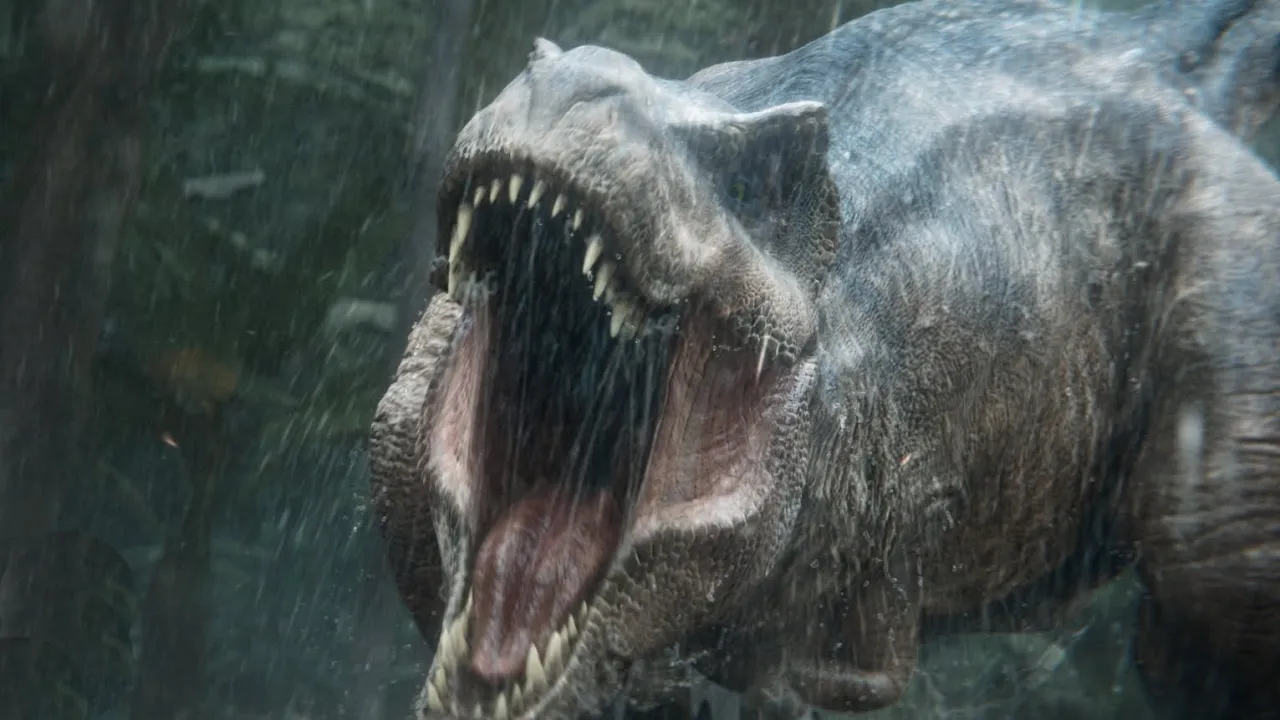


Don't just dream of big productions; equip yourself to be an essential part of them.
Frequently Asked Questions
What are the prerequisites for this course?
You must have knowledge of the Foundry Nuke program to understand the processes being carried out. It is not necessary to have an advanced level of production knowledge, just know how the nodes and menus work, as this aspect is not covered in detail.
If you are unsure whether this course is right for you, please contact us at info@aitorecheveste.com.
Why is this course different from the rest?
I equip you to face real-world challenges, not just to execute projects in ideal scenarios. You will have access to all the necessary materials: plates, renders, assets, and scripts, ready to use in your own projects and improve your reel.
What computer specifications do you recommend?
I completed this course on a MacBook Pro M1 with 16GB of RAM. You don’t need a powerful computer to take the course, but if your specifications are minimal, you will need to create more precomps
Are the lessons live?
No, the lesson content is not broadcast live. This means you can take the course at your own pace. I have designed the program to fit busy schedules.
Where can I find the course?
The course will be hosted permanently on the Gumroad platform. If anything changes with their service in the future, you will still have access to the course on another platform.
You will have lifetime access to the course videos.
I offer you lifetime access to all the videos and materials provided with the courses.
Is this course the same as the Spanish version?
The contents of this course and its Spanish version are identical. However, they are considered separate courses from the perspective of the learning platform. Keep this in mind when deciding which one to enroll in! The Spanish course is directly narrated by me, while the English course is a translation of the Spanish course and narrated using a voice clone with Eleven Labs.
What happens if I have a question during the course?
You can send emails for support via email, and the normal response time is 3 to 5 days.
Can I use the shot in my reel?
Sure, of course, although my recommendation is that you make some changes or do something that sets you apart from the rest.
Can I return an online course?
No, online courses are non-refundable due to the nature of the product. Once access to the content has been granted, we are unable to accept returns.